
Hyprland 初期設定とキーバインド
Hyprland をえらぶ理由
Section titled “Hyprland をえらぶ理由”Hyprland はさまざまなレイアウトを用意している美しいダイナミックタイリング型のマネージャーで、可変リフレッシュレート、ティアリング、HDR などのコンポジターとして高度な機能を備えています。CachyOS の Hyprland 用ドットファイルでは、インストール直後から快適に利用できるようなデフォルト設定になっており、各アプリケーションもシステム全体のテーマに統一されるよう調整されています。
ドットファイル提供: Jinra
Noctalia に関する問題については Noctalia のドキュメントをご覧ください。
セットアップ後は、ご自身に合わせた設定をいくつか行うことをおすすめします。その他の設定については Hyprland Wiki をご覧ください。
~/.config/hypr/config
Section titled “~/.config/hypr/config”monitors.luaではモニター設定を行います。(https://wiki.hypr.land/Configuring/Basics/Monitors/)outputにはモニター ID を指定します。hyprctl monitorsで確認できます。(例:DP-1)modeは1920x1080@60といった形式 (横解像度×縦解像度@リフレッシュレート) で指定します。scaleは通常1のままで問題ありませんが、高解像度ディスプレイではより大きな値を設定したほうが良い場合があります。- 初回の変更後のみ再起動が必要ですが、それ以降の変更はリアルタイムで反映されます。
variables.lua- モニターの割り当てを設定できます。通常は
PRIMARY_MONITORとMONITOR1は同じモニターに設定してください。必要に応じてMONITOR#を追加・削除できます。 - モニターごとのワークスペース数を指定してください。ただし 10 以下で設定してください。
- モニターの割り当てを設定できます。通常は
input.luaHyprland での入力操作の設定を行うことができます。特にsensitivity(感度) の調節をおすすめします。binds.luaこのドットファイルで用意されているすべてのキーバインドを確認できます。下記の一覧も参考にしてください。windowrules.lua特定のウィンドウが特別な動作をする理由を確認できます。また、必要に応じてルールを追加・削除できます。workspaces.luaワークスペースに関する設定を行うことができます。設定ファイルの例のように、モニターごとに3つのワークスペースを設定し、プライマリモニターへゲーム用ワークスペースを追加することをおすすめします。environment.luaは Hyprland の設定やカスタムの環境変数の指定に使います。UWSM を使用している場合は設定の必要はなく、UWSM の環境変数ファイルへ追加する方法をおすすめします。
~/.config/uwsm
Section titled “~/.config/uwsm”envグローバル環境変数を定義するファイルです。HYPRCURSOR_THEME,XCURSOR_THEME,QT_QPA_PLATFORMなどのユーザーアカウント全体で使用する環境変数を設定できます。
~/.config/noctalia (バージョン5専用、V4 でも存在するが Noctalia settings から設定できるため編集不要)
Section titled “~/.config/noctalia (バージョン5専用、V4 でも存在するが Noctalia settings から設定できるため編集不要)”config.tomlには cachyos-hypr-noctalia のデフォルト設定が保存されています。通常の Noctalia V5 の初期設定と異なるのはこのファイルによるものです。基本的には編集する必要はありません。
noctalia settings (Super + Z)
Section titled “noctalia settings (Super + Z)”- Noctalia の設定を変更できます。Templates の項目で使用するアプリケーション向けのカラーテンプレートを有効にすることをおすすめします。
- Plugins Store には、便利な公式&コミュニティ製プラグインも用意されています。
キーバインド
Section titled “キーバインド”多くのキーバインドは修飾キー (スーパーキーや Windows キー、コマンドキーとも呼ばれます) を使用します。binds.lua から変更することができます。
ウィンドウ操作
Section titled “ウィンドウ操作”| 説明 | キー |
|---|---|
| アプリ/ウィンドウを強制終了 (キーを押しながら対象をクリック) | |
| フォーカス中のウィンドウ/アプリを閉じる | |
| フローティング/タイル表示を切り替える | |
| フォーカス中のウィンドウを最大化 | |
| フォーカス中のウィンドウを全画面表示 | |
| 分割方向の切り替え | |
| 左のウィンドウにフォーカス | |
| 右のウィンドウにフォーカス | |
| 上のウィンドウにフォーカス | |
| 下のウィンドウにフォーカス | |
| ワークスペース内でウィンドウのフォーカスを切り替え | |
| ウィンドウスイッチャーを開く | |
| フォーカス中のウィンドウを指定したモニターに移動 | |
| フォーカス中のウィンドウを指定したワークスペースに移動 | |
| フォーカス中のウィンドウをスペシャルワークスペースに移動 | |
| フォーカス中のウィンドウを右に移動 | |
| フォーカス中のウィンドウを左に移動 | |
| フォーカス中のウィンドウを上に移動 | |
| フォーカス中のウィンドウを下に移動 | |
| フォーカス中のウィンドウを次のワークスペースに移動 | |
| フォーカス中のウィンドウを前のワークスペースに移動 | |
| フォーカス中のウィンドウを前のワークスペースに移動 (マウス) | |
| フォーカス中のウィンドウを次のワークスペースに移動 (マウス) | |
| フォーカス中のウィンドウを次のモニターに移動 | |
| フォーカス中のウィンドウを前のモニターに移動 | |
| ウィンドウの移動 (マウス) | |
| ウィンドウサイズの変更 (マウス) |
| 説明 | キー |
|---|---|
| ターミナルを起動 | |
| ファイルマネージャーを起動 | |
| エディターを起動 | |
| 電卓を起動 | |
| ブラウザを起動 | |
| システムモニター (btop) を起動 | |
| Noctalia Settings を開く/閉じる | |
| コントロールセンターを開く/閉じる | |
| アプリランチャーを開く/閉じる | |
| 絵文字ランチャーを開く/閉じる | |
| 画面をロック | |
| セッションメニューを開く/閉じる |
ハードウェア操作
Section titled “ハードウェア操作”| 説明 | キー |
|---|---|
| 音量を上げる | |
| 音量を下げる | |
| スピーカーをミュート | |
| マイクをミュート | |
| メディアを再生/一時停止 | |
| 次のトラック | |
| 前のトラック | |
| 画面の明るさを上げる | |
| 画面の明るさを下げる |
ユーティリティ
Section titled “ユーティリティ”| 説明 | キー |
|---|---|
| カラーピッカー | |
| スクリーンショットを撮影してメモを書く | |
| ウィンドウのスクリーンショットを撮影してメモを書く (v4) | |
| モニター全体のスクリーンショットを撮影してメモを書く (v5) | |
| 画面録画の開始/停止 (v4 のみ) | |
| 壁紙メニューを開く/閉じる | |
| クリップボード履歴を開く | |
| 通知履歴を開く/閉じる |
ワークスペースとモニター
Section titled “ワークスペースとモニター”| 説明 | キー |
|---|---|
| ワークスペース1〜10へ切り替え | |
| ウィンドウをワークスペース1〜10へ移動 (追従) | |
| ウィンドウをワークスペース1〜10へ移動 (追従しない) | |
| 指定したワークスペースへフォーカス | |
| 次のワークスペースへフォーカス | |
| 前のワークスペースへフォーカス | |
| 最初の空いているワークスペースへフォーカス | |
| 次のワークスペースへフォーカス (マウス) | |
| 前のワークスペースへフォーカス (マウス) | |
| 次のモニターへフォーカス (マウス) | |
| 前のモニターへフォーカス (マウス) | |
| スペシャルワークスペース (スクラッチパッド) を開く/閉じる |
他の DE/WM から移行する
Section titled “他の DE/WM から移行する”すでに別のデスクトップ環境 (DE) またはウィンドウマネージャー (WM) をインストールしている場合は、以下の手順でこのドットファイルへ移行できます。
以下の手順では、山括弧 (<>) で囲まれた部分を、山括弧も含めて適切な値に置き換えてください。
sudo pacman -S cachyos-hypr-noctaliaを実行してください。cachyos-kde-settingsなど、他の-settingsパッケージと競合する場合は競合しているパッケージを削除してください。- Noctalia V5 Beta (または -git 版) を使用する場合は、かわりに以下の手順を実行してください。
sudo pacman -Syu noctaliaを実行して Noctalia V5 Beta をインストールしてください。- -git 版を使用する場合は、
paru -Syu noctalia-gitまたはshelly -AI noctalia-gitを実行してください。
- 新しいユーザーを作成する場合は
sudo useradd -m <new_user> -s /bin/fishを実行してください。 sudo passwd <new_user>を実行し、新しいユーザーのパスワードを設定してください。- どうしても同じユーザーアカウントを使用したい場合 (非推奨) は、かわりに
cp -r /etc/skel/. ~を実行してドットファイルをホームディレクトリへコピーしてください。その際は、必ず事前にバックアップまたはスナップショットを作成してください。
- どうしても同じユーザーアカウントを使用したい場合 (非推奨) は、かわりに
- 必要に応じて、SDDM をディスプレイマネージャーとして有効にしてください。まだ設定していない場合は、
systemctl disable display-managerとsystemctl enable sddmを実行してください。Noctalia greeter を使用すると Noctalia とより統一感のある環境になりますが、設定には追加作業が必要です。 - 再起動し、ディスプレイマネージャーから Hyprland (UWSM) セッションを選択してください。
- シェルの起動に失敗した場合は、もう一度再起動してみてください。
- ログイン後、初期設定の内容に従って初期設定を行ってください。
V4 のドットファイルから V5 へ移行 / ドットファイルの更新
Section titled “V4 のドットファイルから V5 へ移行 / ドットファイルの更新”現在 Noctalia V4 の cachyos-hypr-noctalia を使用しており、パッケージをバージョン 1.0 から新しいバージョンへ更新した場合、またはドットファイルを更新したい場合は、以下の手順に従ってください。
ドットファイルを更新する必要があるかどうかは、リリースの変更履歴を確認してください。
Hyprland の更新
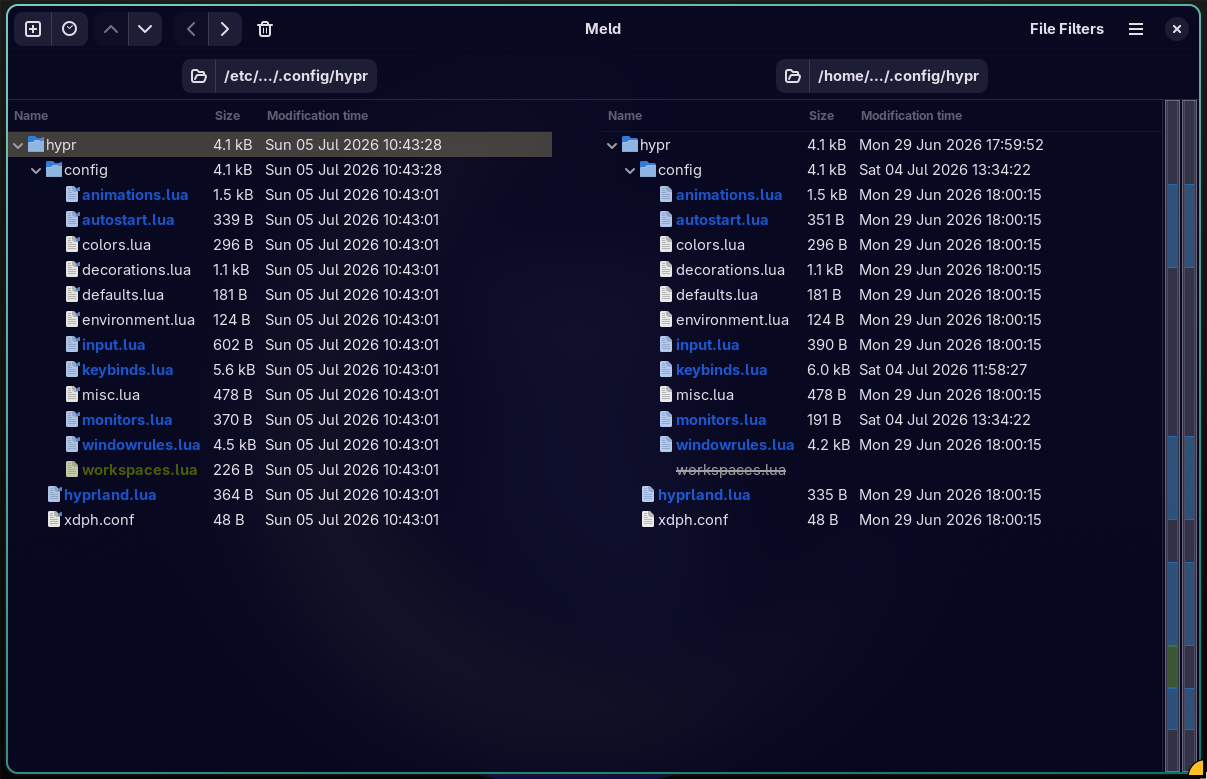
Section titled “Hyprland の更新”meldがインストールされていることを確認してください (pacman -Q meld)。インストールされていない場合はインストールしてください。meld /etc/skel/.config/hypr ~/.config/hyprを実行してください。- Meld が開くと、変更されたすべてのファイルが一覧表示されます。青色のファイルは変更が加えられたファイル、緑色のファイルは新しく追加されたファイルです。
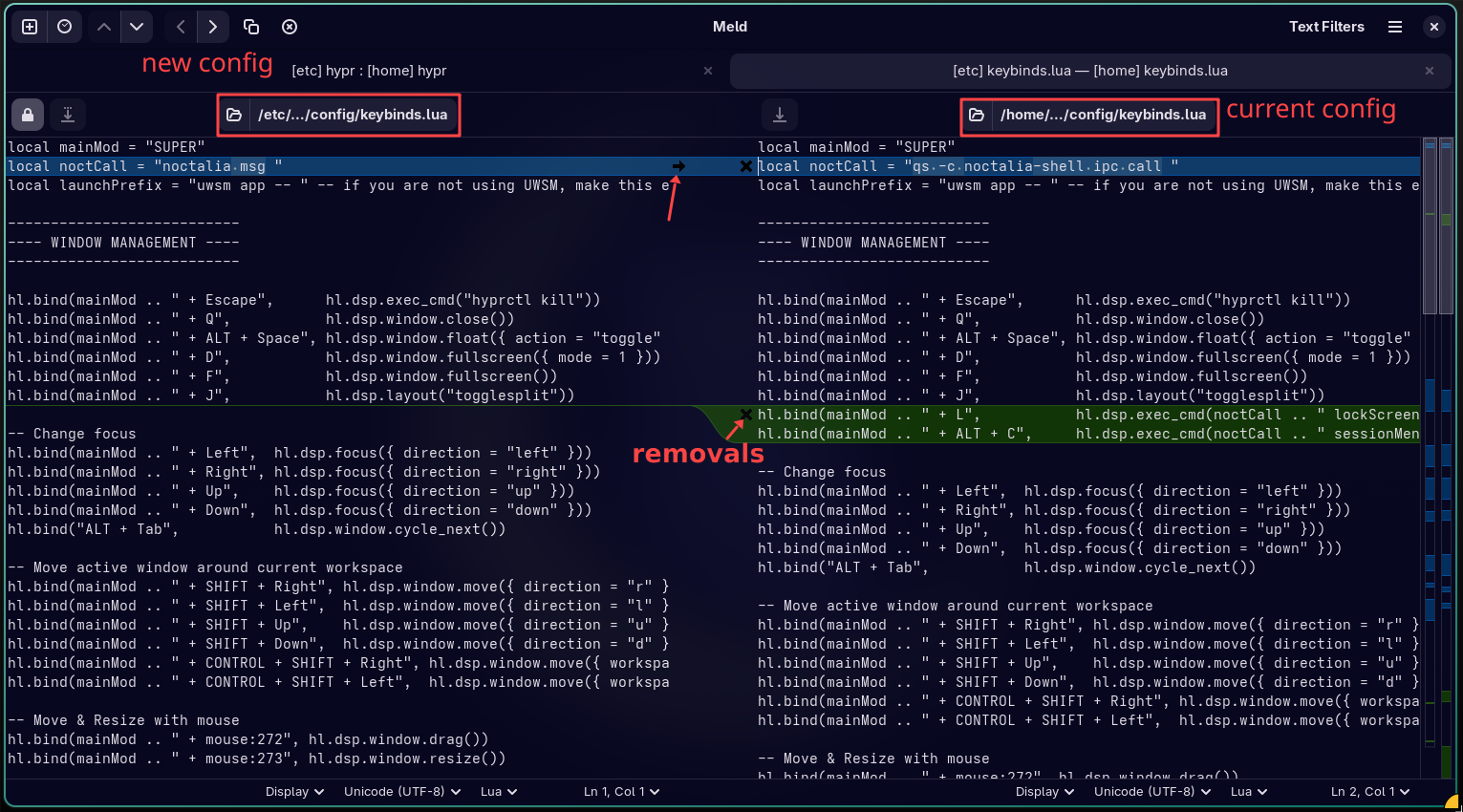
- 青色のファイルをクリックすると、適用される変更を確認できます。どの変更を適用するかは必要に応じて判断してください。ただし、自分で変更を加えていない場合は、ファイル全体を上書きしても問題ありません。矢印ボタンで変更を適用し、× ボタンで古い行を削除できます。
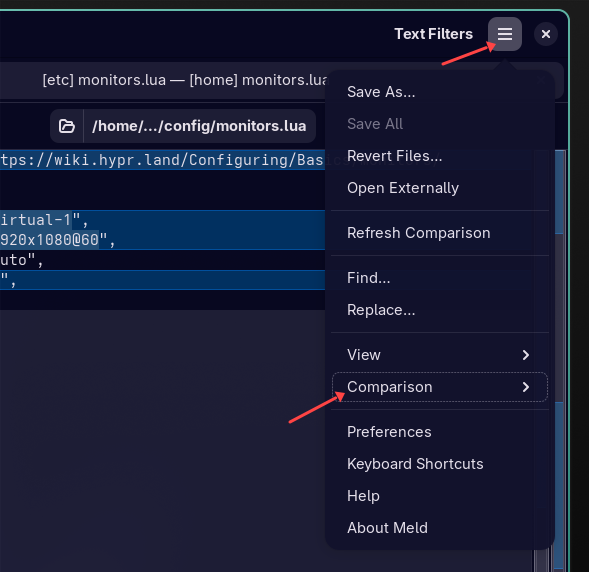
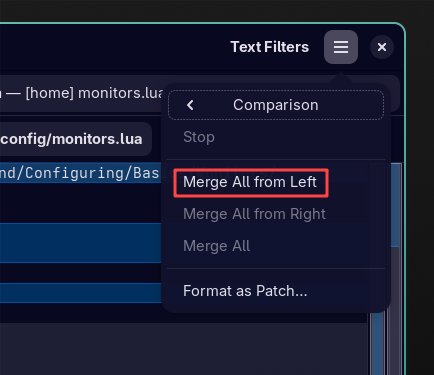
- すべての変更を一括でマージすることもできます。
- ファイルの編集が完了したら、保存して終了してください。
- 新しく追加された緑色のファイルについては、保存先を尋ねられます。同じファイル名のまま
~/.config/hypr/config/に保存してください。新しく追加されるファイルは次の4つです。defaults.luaはvariables.luaに変更されます。独自に追加・変更した内容は、新しいファイルに手動で移行してください。keybinds.luaはbinds.luaに変更されます。独自に追加・変更した内容は、新しいファイルに手動で移行してください。input.luaはinputs.luaに変更されます。独自に追加・変更した内容は、新しいファイルに手動で移行してください。workspaces.luaは新しく追加されたファイルです。そのままコピーして使用してください。
Noctalia の更新
Section titled “Noctalia の更新”rm -rf ~/.config/noctaliaを実行して現在の設定を削除してください。必要になる可能性がある場合は、削除する代わりに別の場所へ移動してください。cp -r /etc/skel/.config/noctalia ~/.configを実行し、新しい設定をホームディレクトリへコピーしてください。
その他の更新
Section titled “その他の更新”他のファイルも更新されている場合があります。必要に応じて Meld を使用して変更を取り込んでください。その他の変更内容については、リリースの変更履歴を確認してください。
孤立パッケージを削除する (V4 → V5 移行)
Section titled “孤立パッケージを削除する (V4 → V5 移行)”パッケージを更新すると、古い依存パッケージが孤立状態になります。shelly purify -o を実行して削除してください。
変更を反映するため、再起動してください。シェルの起動に失敗した場合は、もう一度再起動してみてください。